ZKey
Install ZKey on your MacBook
Download the installer, run it, then add ZKey in Keyboard settings — every step with a real macOS screenshot. About two minutes.
Before you start
Download the ZKey installer
One .pkg for every MacBook, iMac and Mac mini — Apple silicon (M1 or later) and Intel alike.
Download ZKey for macOSVersion 1.0 · macOS 13+ · Apple Silicon & IntelDeveloper ID signed and notarized by Apple
- Version
- 1.0 (build 1)
- Installer
- ZKey-1.0-universal.pkg
- Size
- ≈ 4 MB
- Requires
- macOS 13 Ventura or later
- SHA-256
994dd8c875569af2aa6c795c157eeea4911f518e4ec910d5093b15cfdb074108
- No need to turn off Gatekeeper
- Install over the old version to upgrade
- No data collected
Step by step
Install and turn on ZKey
The installer usually turns ZKey on for you. If you see the VI icon in the menu bar after step 2, skip to step 7.
- Step 1
Open the installer
Open ZKey-1.0-universal.pkg, the file you just downloaded (usually in Downloads).
The installer is Developer ID signed and notarized by Apple, so macOS opens it normally — no need to turn off Gatekeeper or change Privacy & Security.
- Step 2
Install
Click Continue → Install and enter your Mac's administrator password. The installer copies ZKey into /Library/Input Methods, then registers and enables the input source for the account that is signed in.
The installer does not sign you out or change the input source you are using.
- Step 3
Open Keyboard settings
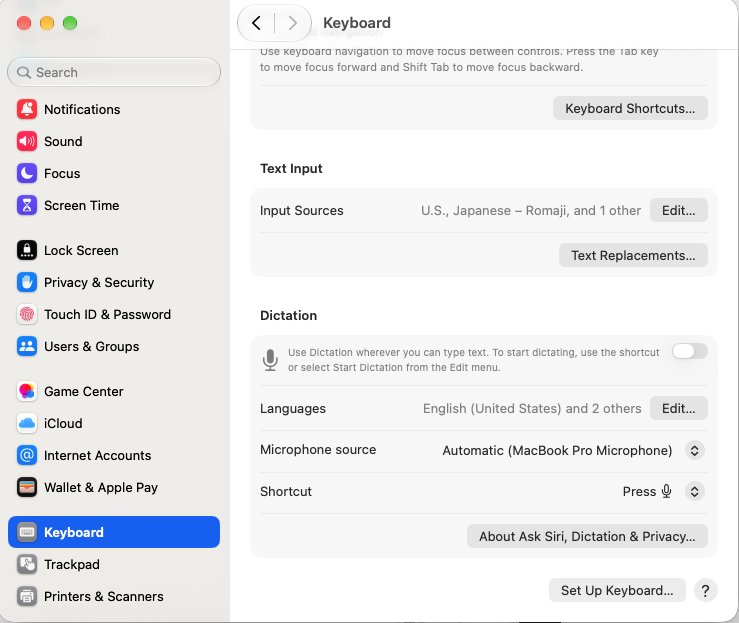
Open System Settings and choose Keyboard in the sidebar. Under Text Input, click Edit… next to Input Sources.
System SettingsKeyboardText InputInput SourcesEdit…
- Step 4
Add ZKey Vietnamese Input
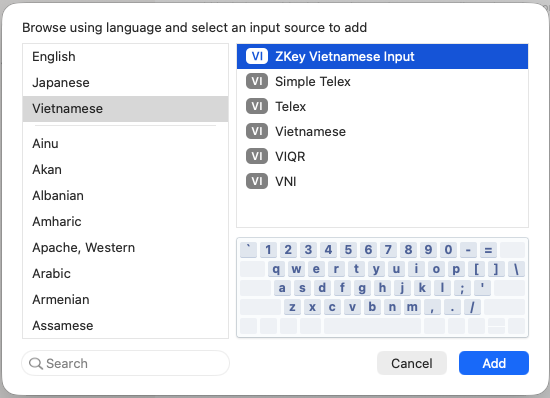
Click + in the bottom-left corner. Choose Vietnamese on the left, ZKey Vietnamese Input on the right, and click Add.
Simple Telex, Telex, Vietnamese, VIQR and VNI are Apple's built-in input methods. Pick the ZKey Vietnamese Input row.
- Step 5
Check the list of input sources
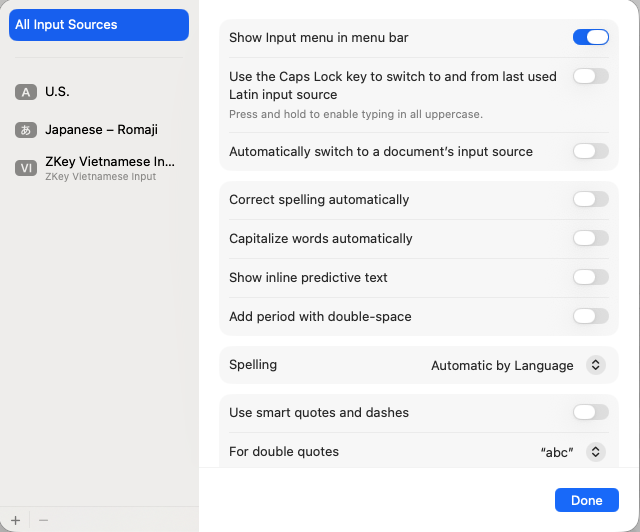
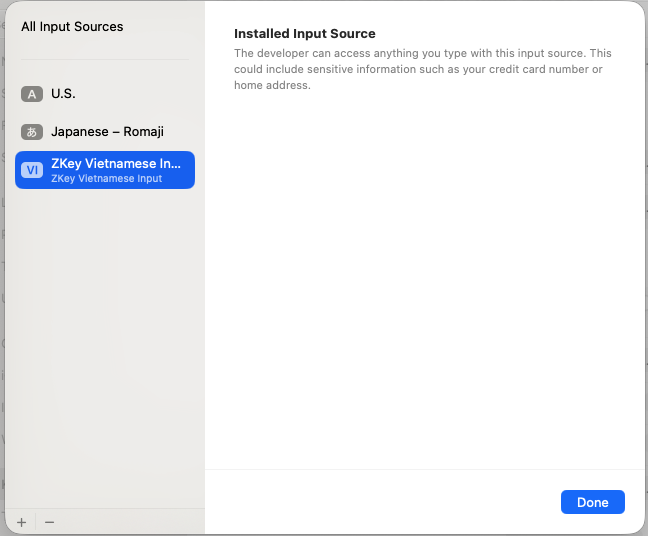
ZKey Vietnamese Input appears in the list with the VI icon. Turn on Show Input menu in menu bar to switch input sources from the menu bar.
Consider turning off Correct spelling automatically and Capitalize words automatically — macOS autocorrect can rewrite Vietnamese words.
- Step 6
About the “Installed Input Source” notice
When you select ZKey in the list, macOS says “The developer can access anything you type with this input source…”. macOS shows this for every third-party input method. ZKey handles keys on your Mac and never sends what you type anywhere. Click Done.
- Step 7
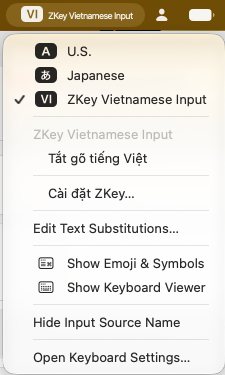
Choose ZKey in the menu bar
Click the input source icon in the menu bar and choose ZKey Vietnamese Input. The same menu has “Tắt gõ tiếng Việt” (turn Vietnamese off) and “Cài đặt ZKey…” (ZKey Settings).
Turn Vietnamese on and off with Control + Shift + Space while ZKey is the input source.
Several accounts on one Mac? Each account adds the ZKey input source itself, with steps 3–7.
ZKey is not in the list?
- Close and reopen System SettingsA Settings window that was already open may not have loaded the new list.
- Sign out and back inmacOS sometimes keeps the previous session's input sources cached. Then look for ZKey under Vietnamese.
- Installed an old copy by hand?If ~/Library/Input Methods/ZKey.app exists, switch to another input source and delete it, so there are not two ZKey sources.
Upgrading
ZKey checks for a new version every day and tells you in the input menu (“Tải bản mới ZKey …”). Download the new installer and install it over the current version — no need to uninstall first or clear settings. Afterwards, switch to another input source and sign out and back in, so macOS loads the new version. Your settings and custom words are kept.
Uninstalling
- Choose another input source in the menu bar (for example U.S.).
- Go to System Settings → Keyboard → Input Sources → Edit…, select ZKey Vietnamese Input and click −.
- In Finder, open
/Library/Input Methodsand deleteZKey.appandZKeyInputMethod.app(administrator password required). - Sign out and back in.
Need help? Email support@z-cloud.com.vn.